เครื่องมือทั้ง 11 หมวด
รายการเครื่องมือทั้งหมดในโปรแกรม แยกตามหมวด พร้อมคำอธิบายสั้น ๆ
ดูแบบวิดีโอEP 4 · ทัวร์เครื่องมือ 11 หมวดโปรแกรมมีเครื่องมือทั้งหมด 111 รายการ แบ่งเป็น 11 หมวดตาม sidebar ทุกเครื่องมือกดรันจากการ์ด หรือค้นหาด้วย Ctrl+K
เครื่องมือที่ระบุว่า "ต้อง admin" ให้กด เปิดเป็น Admin ที่แถบด้านบนก่อน และเครื่องมือที่อ่านค่าจาก Config\ สามารถแก้ไฟล์ได้ที่หน้า บัญชีและตั้งค่า > โฟลเดอร์ข้อมูล
สารบัญหมวด
- System / Hardware / Windows
- Network / Wi-Fi / VPN
- Printer / Print Server
- Microsoft 365
- Azure / Entra ID / Intune
- Active Directory / File Server
- Security
- Software
- Server / VM / Backup / Monitor
- Issue Log / Vendor / Asset
- New PC Setup / Offboarding
1. System / Hardware / Windows
ตรวจสุขภาพเครื่อง ดูสเปก ซ่อม Windows ล้างไฟล์ขยะ และทำรายงานสรุปเครื่องแนบ ticket
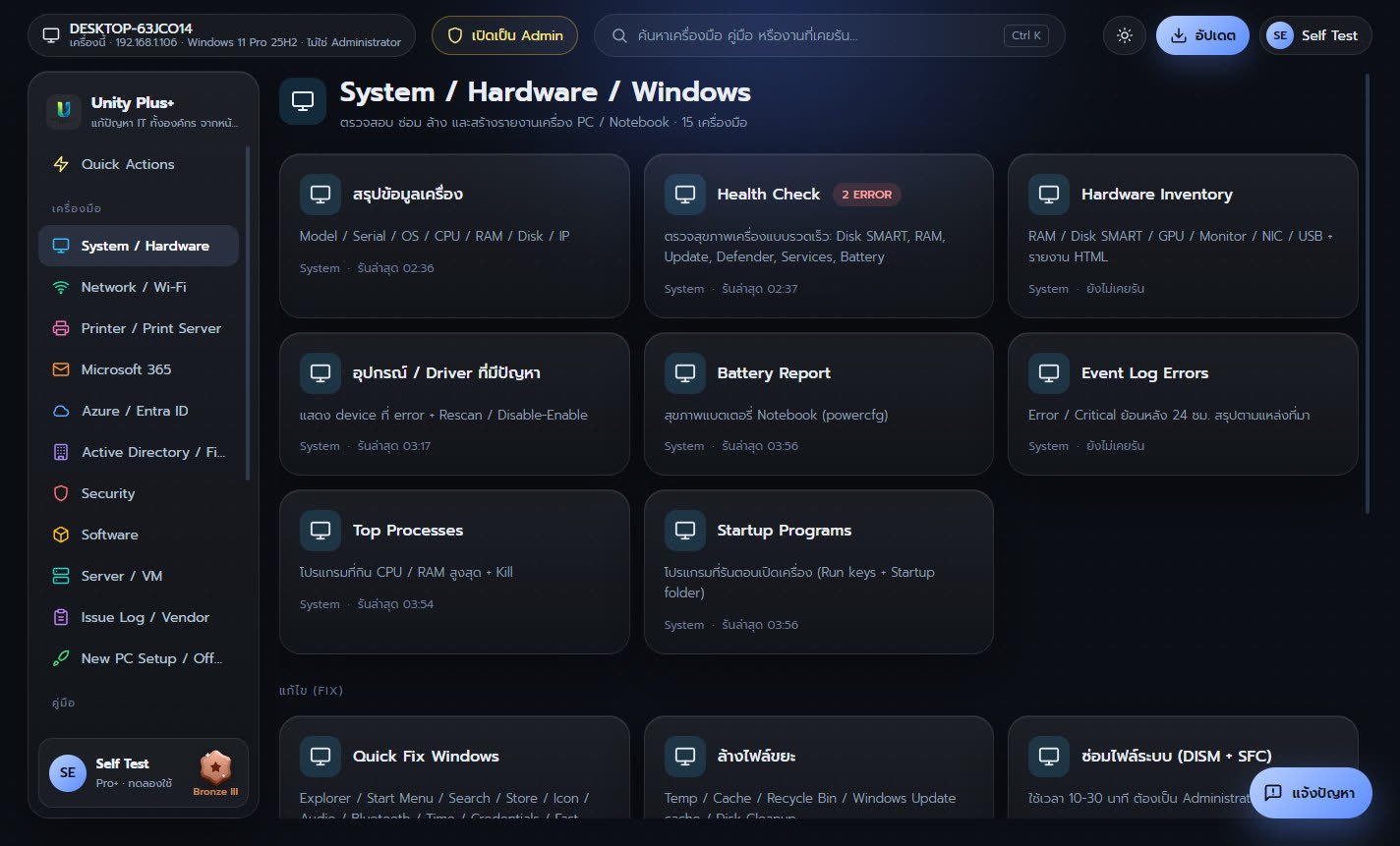
| เครื่องมือ | ทำอะไร |
|---|---|
| สรุปข้อมูลเครื่อง | Model / Serial / OS / CPU / RAM / Disk / IP |
| Health Check | ตรวจสุขภาพเครื่องแบบรวดเร็ว: Disk SMART, RAM, Update, Defender, Services, Battery |
| Hardware Inventory | RAM / Disk SMART / GPU / Monitor / NIC / USB + รายงาน HTML |
| อุปกรณ์ / Driver ที่มีปัญหา | แสดง device ที่ error + Rescan / Disable-Enable |
| Battery Report | สุขภาพแบตเตอรี่ Notebook (powercfg) |
| Event Log Errors | Error / Critical ย้อนหลัง 24 ชม. สรุปตามแหล่งที่มา |
| Top Processes | โปรแกรมที่กิน CPU / RAM สูงสุด + Kill |
| Startup Programs | โปรแกรมที่รันตอนเปิดเครื่อง (Run keys + Startup folder) |
| Quick Fix Windows | Explorer / Start Menu / Search / Store / Icon / Audio / Bluetooth / Time / Credentials / Fast Startup |
| ล้างไฟล์ขยะ | Temp / Cache / Recycle Bin / Windows Update cache / Disk Cleanup |
| ซ่อมไฟล์ระบบ (DISM + SFC) | ใช้เวลา 10-30 นาที ต้องเป็น Administrator |
| Reset Windows Update | หยุด service, rename SoftwareDistribution / catroot2, scan ใหม่ |
| Power Plan | Balanced / High performance / ไม่ Sleep เมื่อเสียบไฟ / ปิดฝา Notebook ไม่ Sleep |
| รายงานสรุปเครื่อง (HTML) | Summary + Health + Network + Hotfix + Software สำหรับแนบ ticket / ส่ง vendor |
| Remote Support | RDP / Quick Assist / msra / Computer Management / Event Viewer / PSSession / C$ / Restart |
2. Network / Wi-Fi / VPN
หาสาเหตุเน็ตช้าหรือหลุด ทดสอบทีละขั้นตั้งแต่ Gateway ถึง Internet วัดความเร็ว สแกนอุปกรณ์ใน LAN
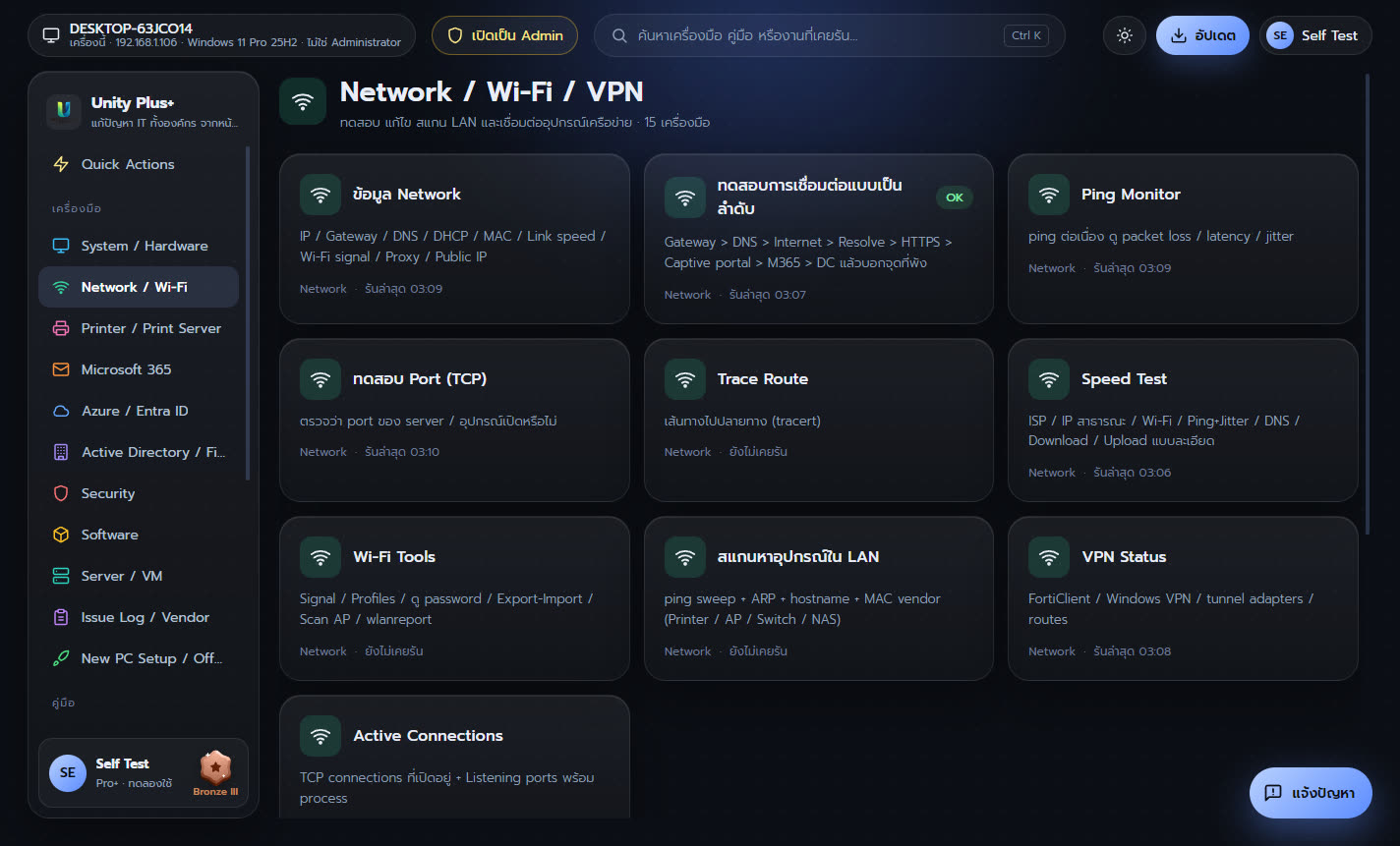
| เครื่องมือ | ทำอะไร |
|---|---|
| ข้อมูล Network | IP / Gateway / DNS / DHCP / MAC / Link speed / Wi-Fi signal / Proxy / Public IP |
| ทดสอบการเชื่อมต่อแบบเป็นลำดับ | Gateway > DNS > Internet > Resolve > HTTPS > Captive portal > M365 > DC แล้วบอกจุดที่พัง |
| Ping Monitor | ping ต่อเนื่อง ดู packet loss / latency / jitter |
| ทดสอบ Port (TCP) | ตรวจว่า port ของ server / อุปกรณ์เปิดหรือไม่ |
| Trace Route | เส้นทางไปปลายทาง (tracert) |
| Speed Test | ISP / IP สาธารณะ / Wi-Fi / Ping+Jitter / DNS / Download / Upload แบบละเอียด |
| Wi-Fi Tools | Signal / Profiles / ดู password / Export-Import / Scan AP / wlanreport |
| สแกนหาอุปกรณ์ใน LAN | ping sweep + ARP + hostname + MAC vendor (Printer / AP / Switch / NAS) |
| VPN Status | FortiClient / Windows VPN / tunnel adapters / routes |
| Active Connections | TCP connections ที่เปิดอยู่ + Listening ports พร้อม process |
| Flush DNS + Renew IP | แก้ปัญหา DNS / IP แบบเร็ว |
| Reset Network Stack | winsock / IP / firewall reset + restart adapters (ต้อง admin) |
| ตั้ง Static IP / DHCP | เปลี่ยน IP / Gateway / DNS ของ adapter |
| เชื่อมต่ออุปกรณ์ Network | SSH / Web ไป Switch / FortiGate / AP / NAS (จาก Config\NetworkDevices.csv) |
| รายงาน Network Diagnostics (HTML) | Interfaces / Tests / Adapter errors / Routes / ARP / Wi-Fi ส่ง Vendor หรือ ISP |
3. Printer / Print Server
แก้พิมพ์ไม่ออก คิวค้าง Spooler ค้าง เพิ่มเครื่องพิมพ์ด้วย IP และดูแล Print Server
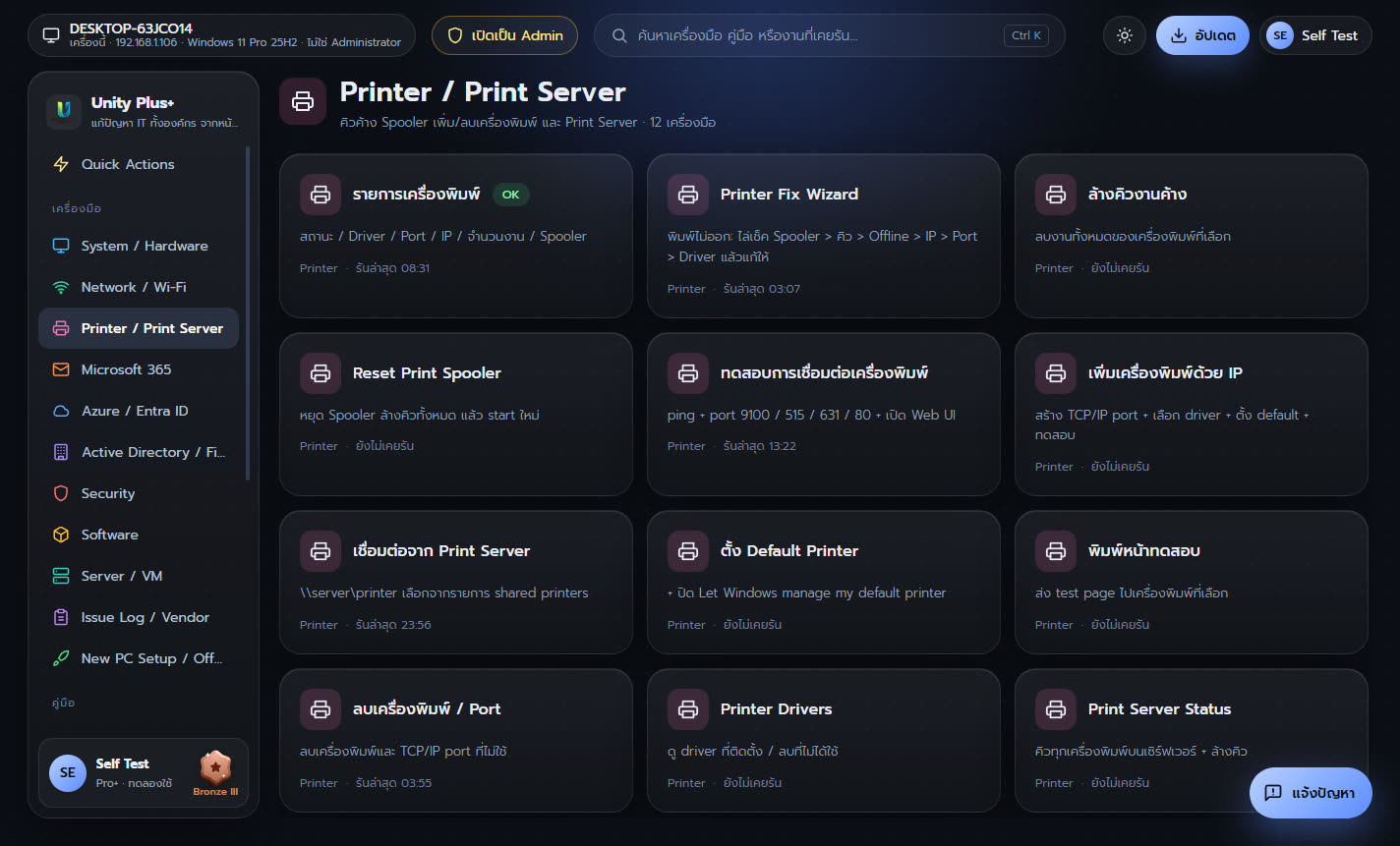
| เครื่องมือ | ทำอะไร |
|---|---|
| รายการเครื่องพิมพ์ | สถานะ / Driver / Port / IP / จำนวนงาน / Spooler |
| Printer Fix Wizard | พิมพ์ไม่ออก: ไล่เช็ค Spooler > คิว > Offline > IP > Port > Driver แล้วแก้ให้ |
| ล้างคิวงานค้าง | ลบงานทั้งหมดของเครื่องพิมพ์ที่เลือก |
| Reset Print Spooler | หยุด Spooler ล้างคิวทั้งหมด แล้ว start ใหม่ |
| ทดสอบการเชื่อมต่อเครื่องพิมพ์ | ping + port 9100 / 515 / 631 / 80 + เปิด Web UI |
| เพิ่มเครื่องพิมพ์ด้วย IP | สร้าง TCP/IP port + เลือก driver + ตั้ง default + ทดสอบ |
| เชื่อมต่อจาก Print Server | \\server\printer เลือกจากรายการ shared printers |
| ตั้ง Default Printer | + ปิด Let Windows manage my default printer |
| พิมพ์หน้าทดสอบ | ส่ง test page ไปเครื่องพิมพ์ที่เลือก |
| ลบเครื่องพิมพ์ / Port | ลบเครื่องพิมพ์และ TCP/IP port ที่ไม่ใช้ |
| Printer Drivers | ดู driver ที่ติดตั้ง / ลบที่ไม่ได้ใช้ |
| Print Server Status | คิวทุกเครื่องพิมพ์บนเซิร์ฟเวอร์ + ล้างคิว |
4. Microsoft 365
แก้ปัญหา Outlook Teams OneDrive Office sign-in และงานผู้ดูแล Microsoft 365
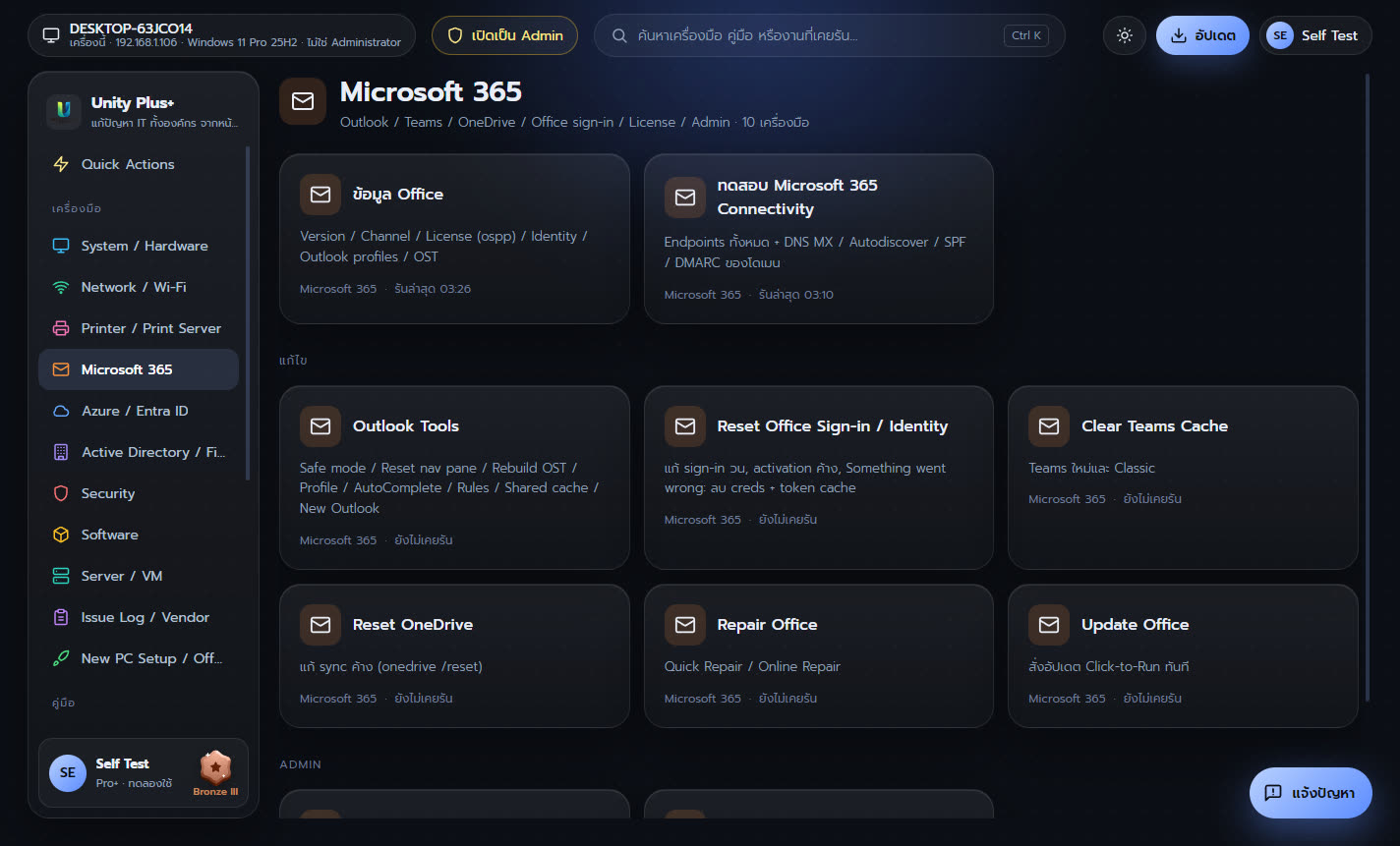
| เครื่องมือ | ทำอะไร |
|---|---|
| ข้อมูล Office | Version / Channel / License (ospp) / Identity / Outlook profiles / OST |
| ทดสอบ Microsoft 365 Connectivity | Endpoints ทั้งหมด + DNS MX / Autodiscover / SPF / DMARC ของโดเมน |
| Outlook Tools | Safe mode / Reset nav pane / Rebuild OST / Profile / AutoComplete / Rules / Shared cache / New Outlook |
| Reset Office Sign-in / Identity | แก้ sign-in วน, activation ค้าง, Something went wrong: ลบ creds + token cache |
| Clear Teams Cache | Teams ใหม่และ Classic |
| Reset OneDrive | แก้ sync ค้าง (onedrive /reset) |
| Repair Office | Quick Repair / Online Repair |
| Update Office | สั่งอัปเดต Click-to-Run ทันที |
| M365 Admin PowerShell | Graph / Exchange Online: ค้นหา user, license, mailbox, inbox rules (ติดตั้ง module ให้) |
| เปิด Admin Portals | M365 / Entra / Exchange / Teams / SharePoint / Intune / Defender / Purview |
5. Azure / Entra ID / Intune
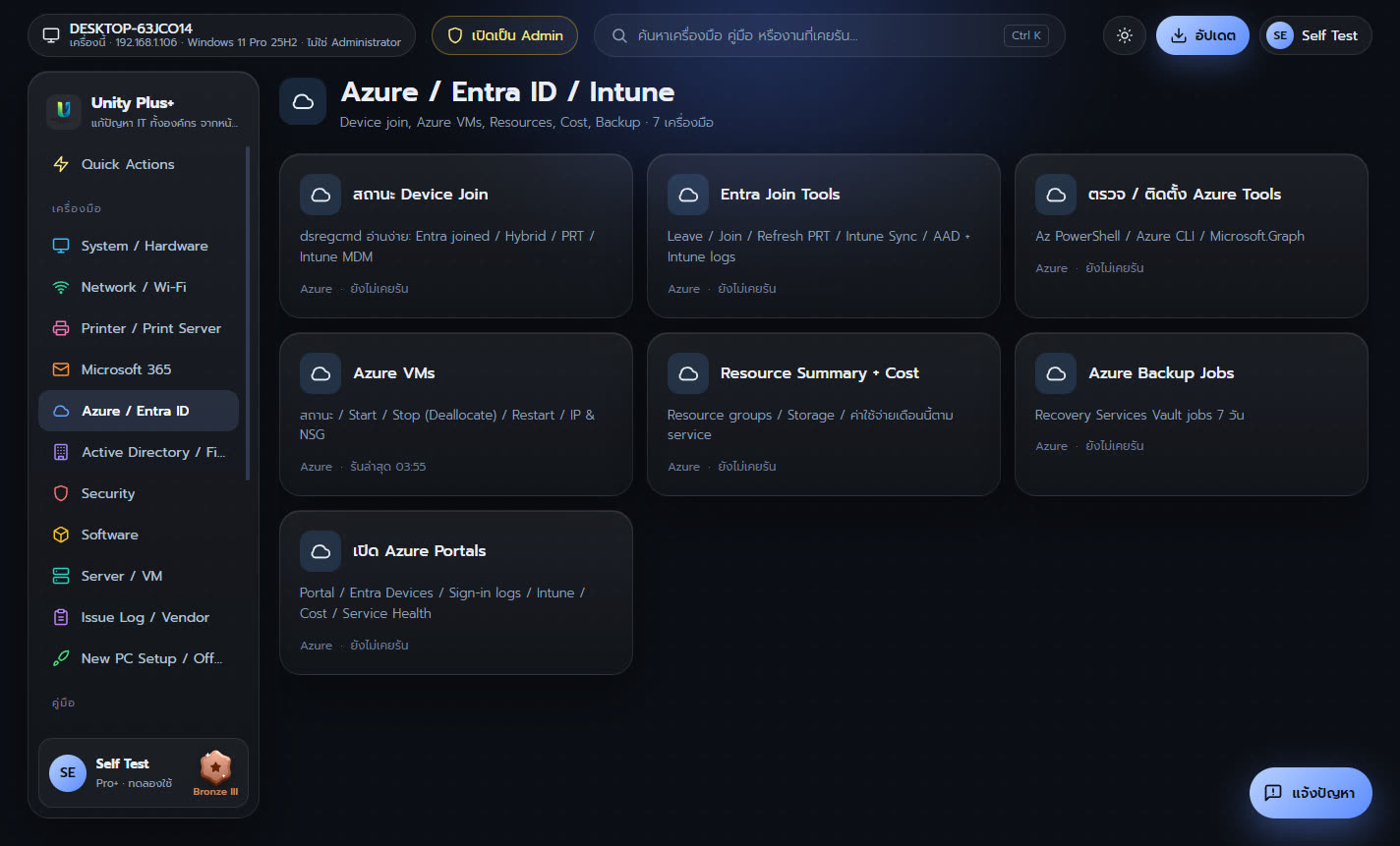
ตรวจสถานะ Entra ID / Intune ของเครื่อง จัดการ Azure VM ดูค่าใช้จ่ายและ Backup
| เครื่องมือ | ทำอะไร |
|---|---|
| สถานะ Device Join | dsregcmd อ่านง่าย: Entra joined / Hybrid / PRT / Intune MDM |
| Entra Join Tools | Leave / Join / Refresh PRT / Intune Sync / AAD + Intune logs |
| ตรวจ / ติดตั้ง Azure Tools | Az PowerShell / Azure CLI / Microsoft.Graph |
| Azure VMs | สถานะ / Start / Stop (Deallocate) / Restart / IP & NSG |
| Resource Summary + Cost | Resource groups / Storage / ค่าใช้จ่ายเดือนนี้ตาม service |
| Azure Backup Jobs | Recovery Services Vault jobs 7 วัน |
| เปิด Azure Portals | Portal / Entra Devices / Sign-in logs / Intune / Cost / Service Health |
6. Active Directory / File Server
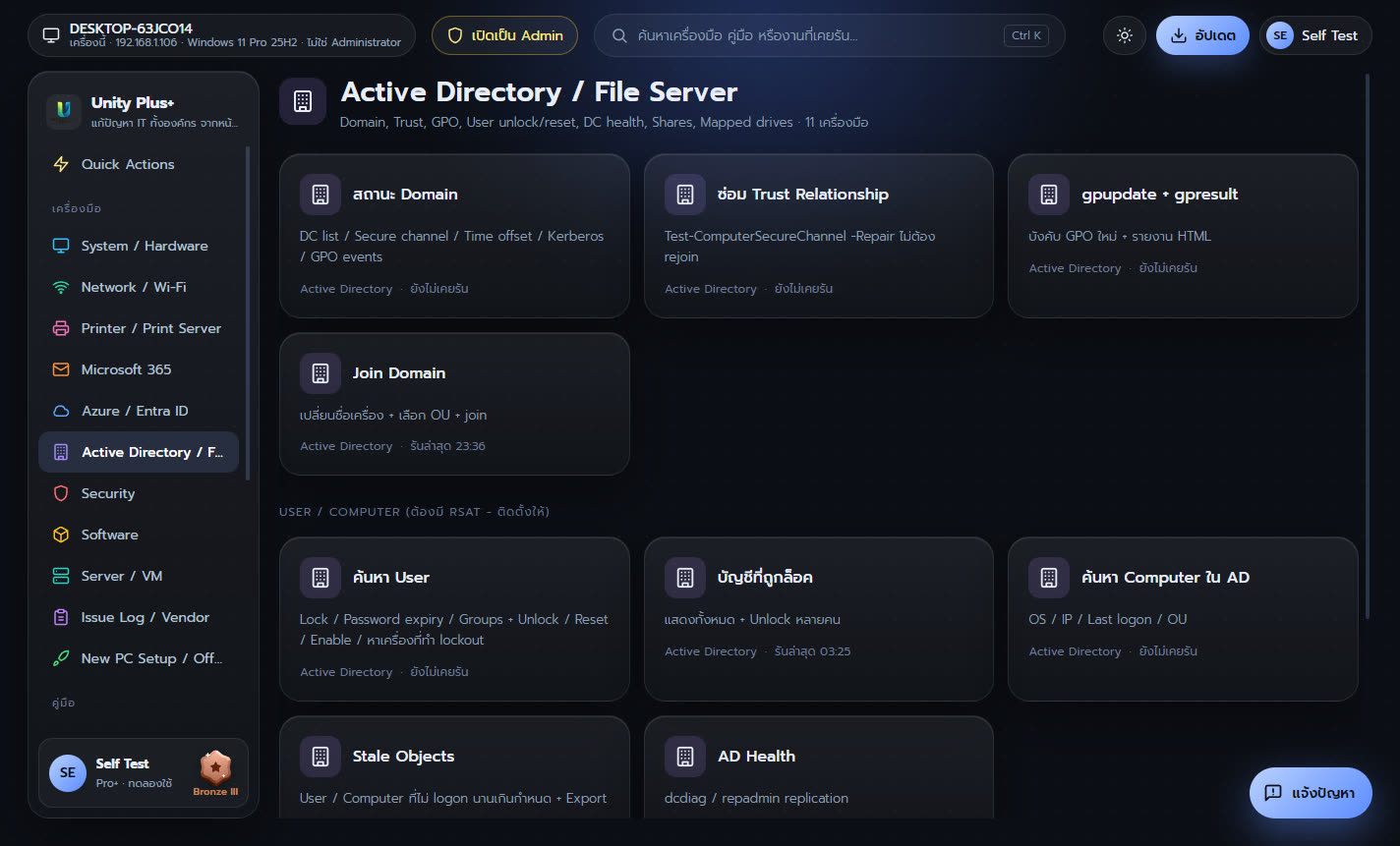
ดูแล Active Directory ปลดล็อก รีเซ็ตรหัสผ่านผู้ใช้ ซ่อม Trust GPO และ File Server
| เครื่องมือ | ทำอะไร |
|---|---|
| สถานะ Domain | DC list / Secure channel / Time offset / Kerberos / GPO events |
| ซ่อม Trust Relationship | Test-ComputerSecureChannel -Repair ไม่ต้อง rejoin |
| gpupdate + gpresult | บังคับ GPO ใหม่ + รายงาน HTML |
| Join Domain | เปลี่ยนชื่อเครื่อง + เลือก OU + join |
| ค้นหา User | Lock / Password expiry / Groups + Unlock / Reset / Enable / หาเครื่องที่ทำ lockout |
| บัญชีที่ถูกล็อค | แสดงทั้งหมด + Unlock หลายคน |
| ค้นหา Computer ใน AD | OS / IP / Last logon / OU |
| Stale Objects | User / Computer ที่ไม่ logon นานเกินกำหนด + Export |
| AD Health | dcdiag / repadmin replication |
| File Server | Shares / Open files / Sessions / Disk / ปิดไฟล์ที่ถูกล็อค |
| Mapped Drives | Map / ลบ / Reconnect / ตาม Config\Drives.csv |
7. Security
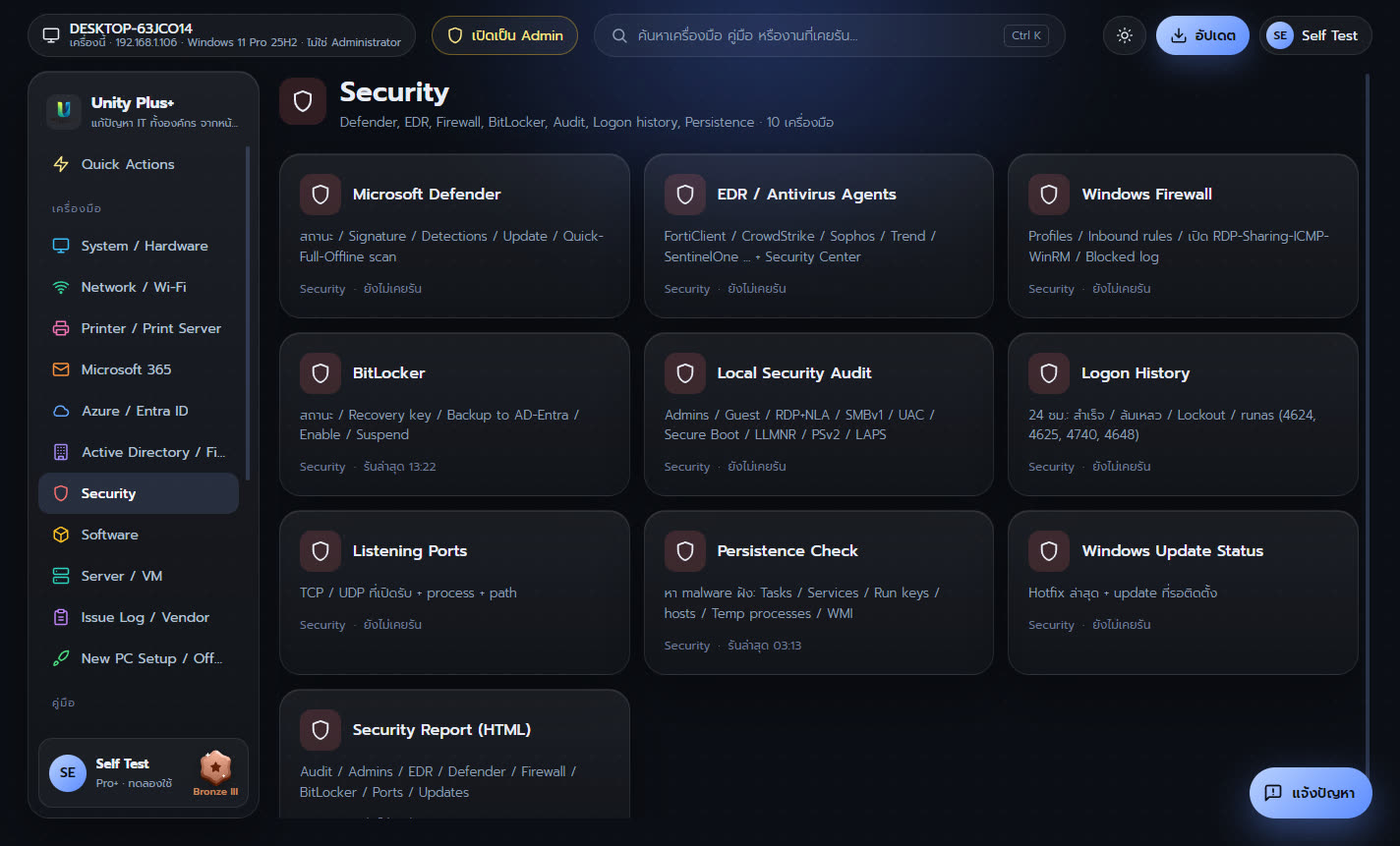
ตรวจ Defender EDR Firewall BitLocker ประวัติการเข้าสู่ระบบ และหาโปรแกรมแฝง
| เครื่องมือ | ทำอะไร |
|---|---|
| Microsoft Defender | สถานะ / Signature / Detections / Update / Quick-Full-Offline scan |
| EDR / Antivirus Agents | FortiClient / CrowdStrike / Sophos / Trend / SentinelOne ... + Security Center |
| Windows Firewall | Profiles / Inbound rules / เปิด RDP-Sharing-ICMP-WinRM / Blocked log |
| BitLocker | สถานะ / Recovery key / Backup to AD-Entra / Enable / Suspend |
| Local Security Audit | Admins / Guest / RDP+NLA / SMBv1 / UAC / Secure Boot / LLMNR / PSv2 / LAPS |
| Logon History | 24 ชม.: สำเร็จ / ล้มเหลว / Lockout / runas (4624, 4625, 4740, 4648) |
| Listening Ports | TCP / UDP ที่เปิดรับ + process + path |
| Persistence Check | หา malware ฝัง: Tasks / Services / Run keys / hosts / Temp processes / WMI |
| Windows Update Status | Hotfix ล่าสุด + update ที่รอติดตั้ง |
| Security Report (HTML) | Audit / Admins / EDR / Defender / Firewall / BitLocker / Ports / Updates |
8. Software
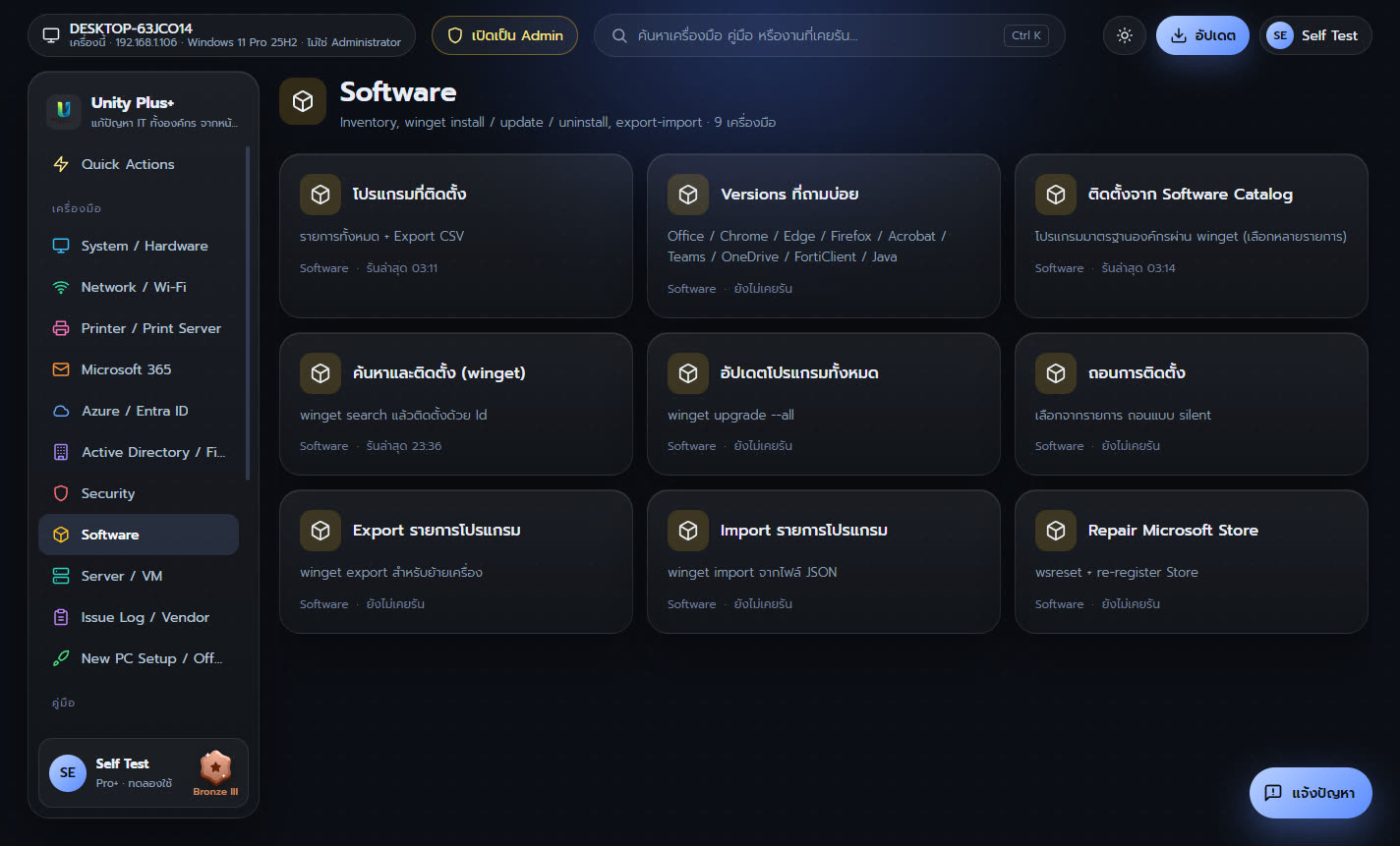
ดูโปรแกรมที่ติดตั้ง ติดตั้ง อัปเดต และถอนโปรแกรมผ่าน winget
| เครื่องมือ | ทำอะไร |
|---|---|
| โปรแกรมที่ติดตั้ง | รายการทั้งหมด + Export CSV |
| Versions ที่ถามบ่อย | Office / Chrome / Edge / Firefox / Acrobat / Teams / OneDrive / FortiClient / Java |
| ติดตั้งจาก Software Catalog | โปรแกรมมาตรฐานองค์กรผ่าน winget (เลือกหลายรายการ) |
| ค้นหาและติดตั้ง (winget) | winget search แล้วติดตั้งด้วย Id |
| อัปเดตโปรแกรมทั้งหมด | winget upgrade --all |
| ถอนการติดตั้ง | เลือกจากรายการ ถอนแบบ silent |
| Export รายการโปรแกรม | winget export สำหรับย้ายเครื่อง |
| Import รายการโปรแกรม | winget import จากไฟล์ JSON |
| Repair Microsoft Store | wsreset + re-register Store |
9. Server / VM / Backup / Monitor
ตรวจ Server ทั้งในเครื่องและระยะไกล Hyper-V VMware Backup และเฝ้าดูแบบ real-time
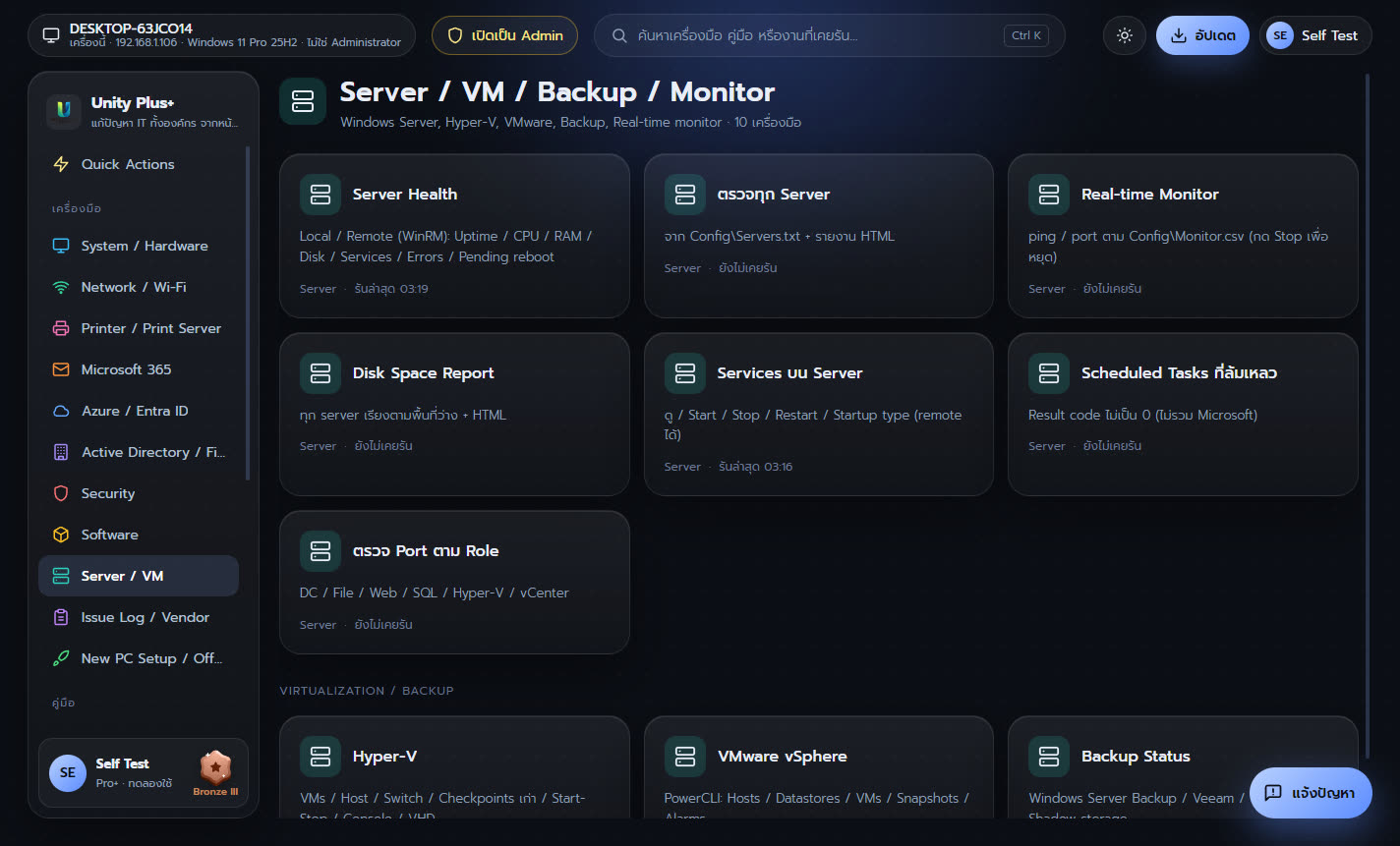
| เครื่องมือ | ทำอะไร |
|---|---|
| Server Health | Local / Remote (WinRM): Uptime / CPU / RAM / Disk / Services / Errors / Pending reboot |
| ตรวจทุก Server | จาก Config\Servers.txt + รายงาน HTML |
| Real-time Monitor | ping / port ตาม Config\Monitor.csv (กด Stop เพื่อหยุด) |
| Disk Space Report | ทุก server เรียงตามพื้นที่ว่าง + HTML |
| Services บน Server | ดู / Start / Stop / Restart / Startup type (remote ได้) |
| Scheduled Tasks ที่ล้มเหลว | Result code ไม่เป็น 0 (ไม่รวม Microsoft) |
| ตรวจ Port ตาม Role | DC / File / Web / SQL / Hyper-V / vCenter |
| Hyper-V | VMs / Host / Switch / Checkpoints เก่า / Start-Stop / Console / VHD |
| VMware vSphere | PowerCLI: Hosts / Datastores / VMs / Snapshots / Alarms |
| Backup Status | Windows Server Backup / Veeam / VSS writers / Shadow storage |
10. Issue Log / Vendor / Asset
บันทึกงาน IT ติดตามสถานะ ทำรายงานรายเดือน รายชื่อ Vendor และทะเบียนอุปกรณ์
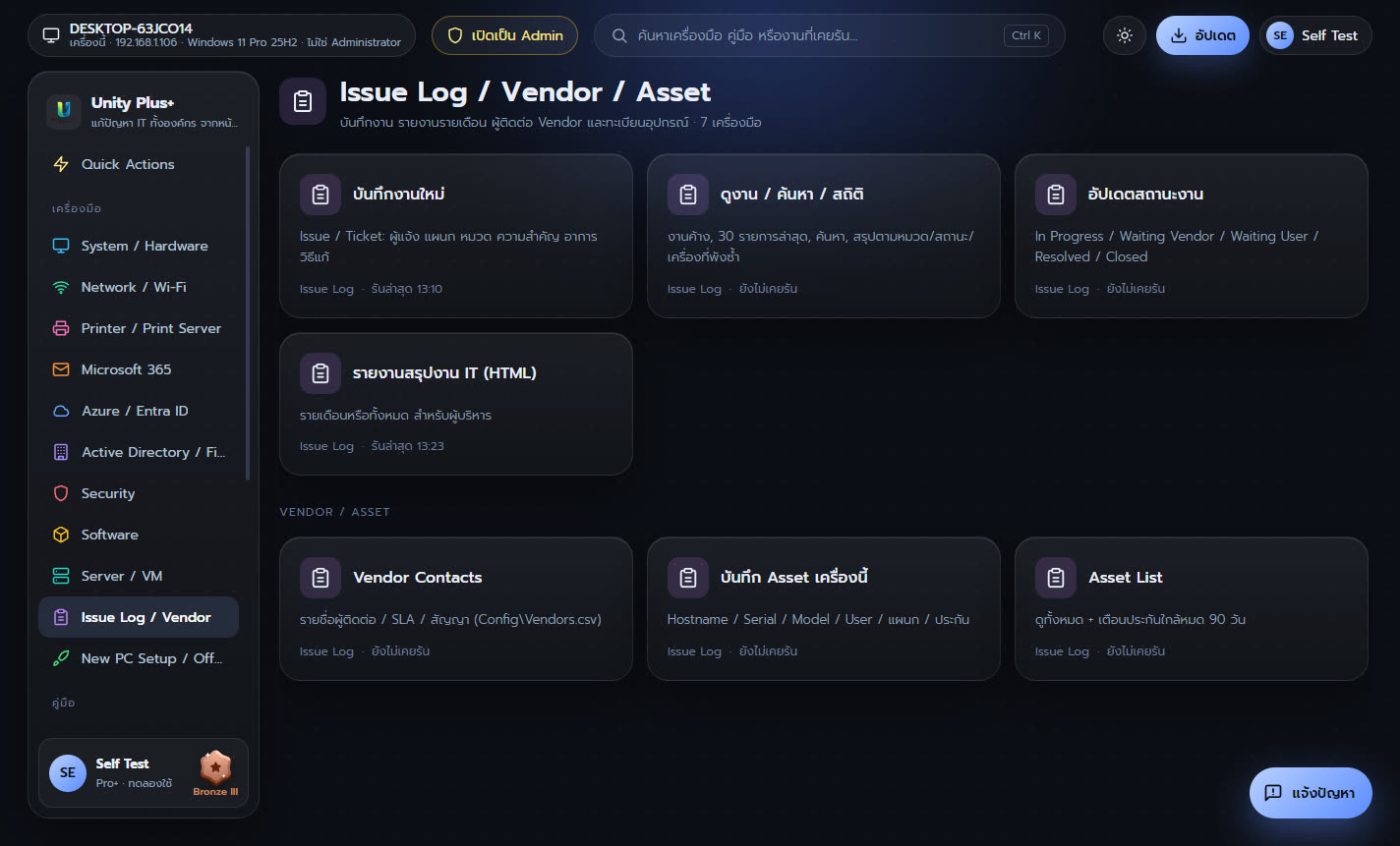
| เครื่องมือ | ทำอะไร |
|---|---|
| บันทึกงานใหม่ | Issue / Ticket: ผู้แจ้ง แผนก หมวด ความสำคัญ อาการ วิธีแก้ |
| ดูงาน / ค้นหา / สถิติ | งานค้าง, 30 รายการล่าสุด, ค้นหา, สรุปตามหมวด/สถานะ/เครื่องที่พังซ้ำ |
| อัปเดตสถานะงาน | In Progress / Waiting Vendor / Waiting User / Resolved / Closed |
| รายงานสรุปงาน IT (HTML) | รายเดือนหรือทั้งหมด สำหรับผู้บริหาร |
| Vendor Contacts | รายชื่อผู้ติดต่อ / SLA / สัญญา (Config\Vendors.csv) |
| บันทึก Asset เครื่องนี้ | Hostname / Serial / Model / User / แผนก / ประกัน |
| Asset List | ดูทั้งหมด + เตือนประกันใกล้หมด 90 วัน |
11. New PC Setup / Offboarding
ตั้งเครื่องใหม่ตามมาตรฐานองค์กร 14 ขั้น และเก็บเครื่องคืนเมื่อพนักงานออก
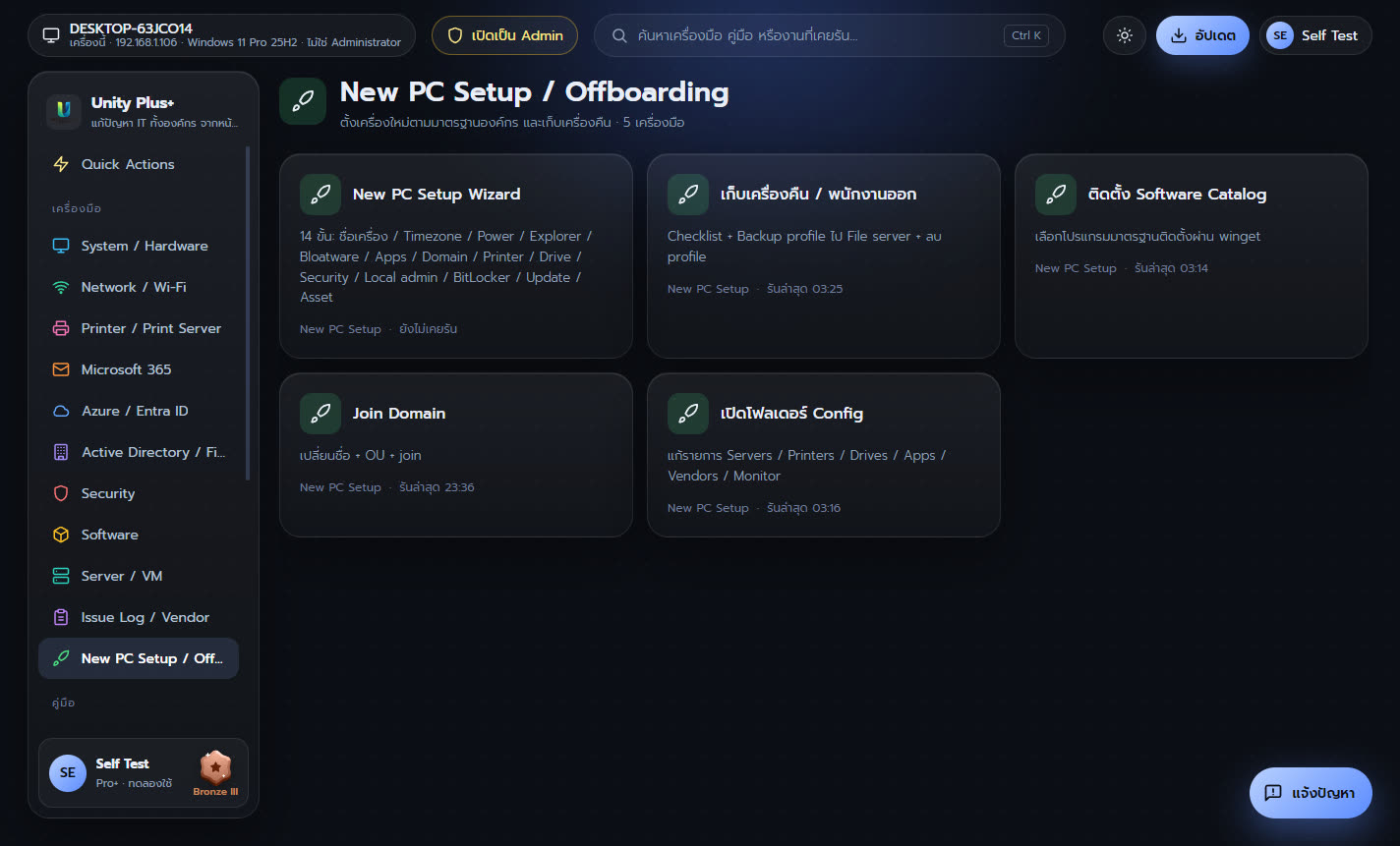
| เครื่องมือ | ทำอะไร |
|---|---|
| New PC Setup Wizard | 14 ขั้น: ชื่อเครื่อง / Timezone / Power / Explorer / Bloatware / Apps / Domain / Printer / Drive / Security / Local admin / BitLocker / Update / Asset |
| เก็บเครื่องคืน / พนักงานออก | Checklist + Backup profile ไป File server + ลบ profile |
| ติดตั้ง Software Catalog | เลือกโปรแกรมมาตรฐานติดตั้งผ่าน winget |
| Join Domain | เปลี่ยนชื่อ + OU + join |
| เปิดโฟลเดอร์ Config | แก้รายการ Servers / Printers / Drives / Apps / Vendors / Monitor |
บทถัดไป: Issue Log, Playbooks และรายงาน